How to take a screenshot on a BlackBerry
If you want to take a copy of what's currently on your BlackBerry’s screen, this two-step screenshot guide will show you how


-
 Microsoft's Brad Smith wants more AI kill switches
News Brad Smith has called for more regulation, saying the UK is well-positioned to lead
-
 Two groups account for a third of UK ransomware attacks
News Data from Cohesity has revealed that Europe has become a primary target as the number of US ransomware attacks declines


-
 Blackberry revenue falls by 4% as cyber security division takes hit
News Despite this, the company’s Internet of Things (IoT) division increased its revenue by 28% as it attracted new customers from the automotive sector
-
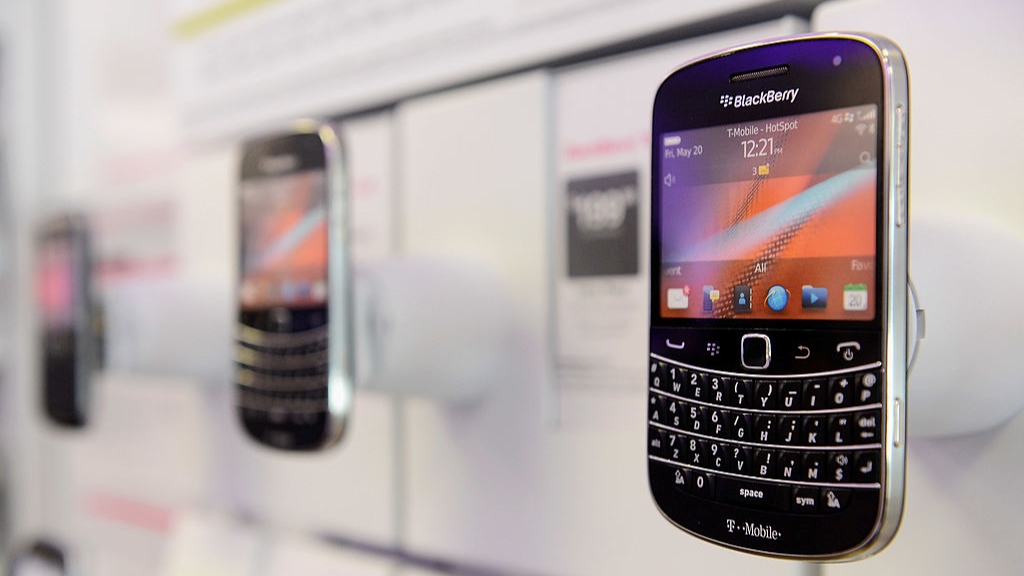 BlackBerry revival is officially dead as OnwardMobility shuts down
News The Texas-based startup is mysteriously shutting down and taking its ultra-secure 5G BlackBerry with it
-
 BlackBerry and AWS are developing a standardized vehicle data platform
News Platform will give automakers a standardized way to process data from vehicle sensors in the cloud
-
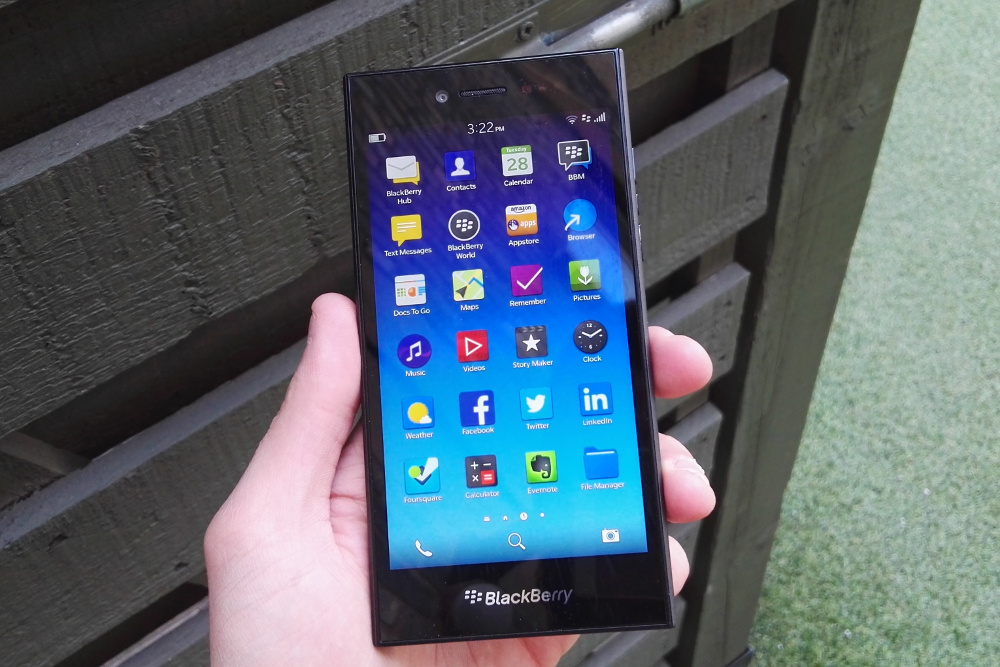 BlackBerry thwarts mobile phishing attacks with new AI tools
News The company's Protect Mobile platform alerts users to potential malware before a link is clicked
-
 BlackBerry Persona Desktop delivers zero-trust security at the endpoint
News New security solution learns user behavior and can take action if there’s an abnormality
-
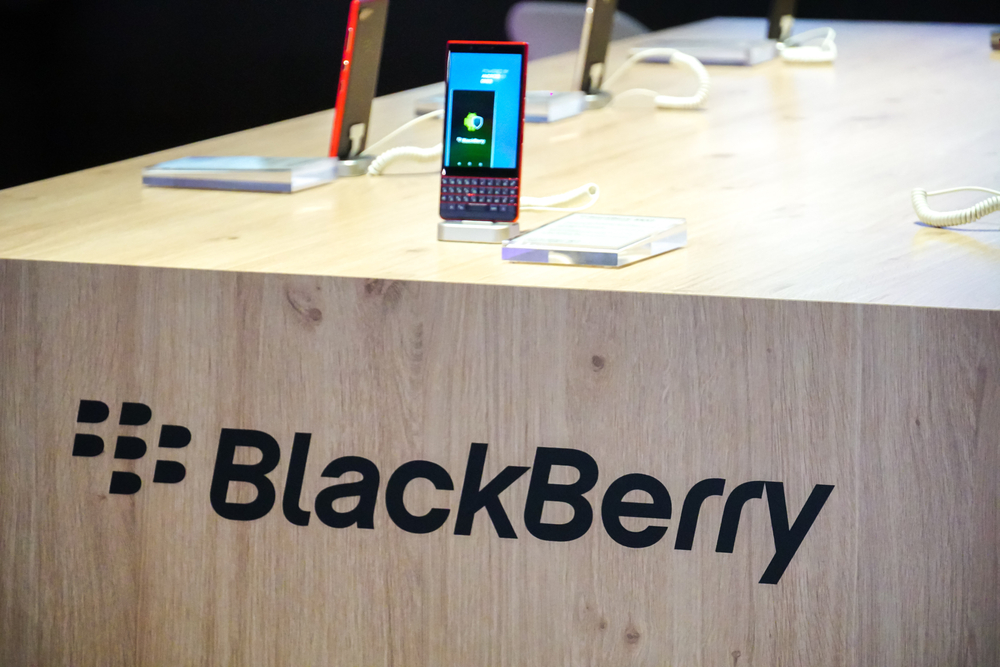 A 5G BlackBerry phone with physical keyboard is coming in 2021
News The business phone to be resurrected with OnwardMobility and FIH Mobile planning a security-savvy enterprise handset
-
 The business smartphone is dead
In-depth BlackBerry’s demise signals the end of the business-first handset
-
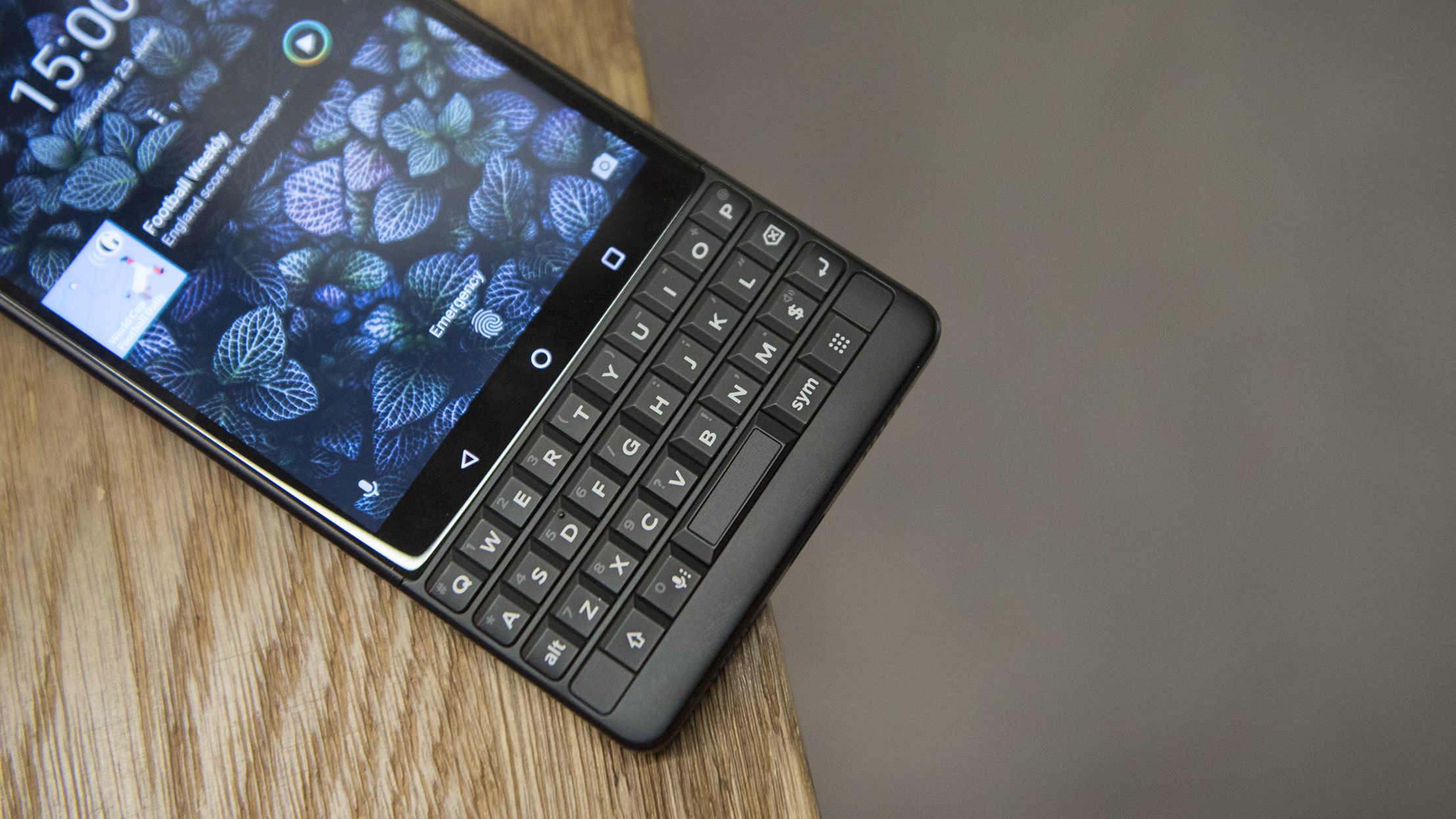 BlackBerry Key2 review: The best physical keyboard no one asked for
Reviews Despite the improvements, the flaws of BlackBerry’s Key range are still front and centre


